Monday, August 14, 2017

Does My Internet Service Provider Block Port 80?

If you are like me who runs a little web server at home, you may encounter this problem, that is, regardless how you try, you simply cannot get port forwarding to work for port 80 while port forwarding functions fine for any other ports at home. It turns out that I am not alone. For instance, this Linux Questions thread states,
"Turns out Cablevision (my provider) 'blocks' port forwarding on their routers, so they say."

Yes, and indeed, that is what they say. My current Internet Service Provider (ISP) is Optimum. It states on their customer service site,
"Because Port 80 is often used by malicious software, including viruses and worms, Optimum, like many ISPs (Internet Service Providers), blocks this port for all standard Optimum customers."
Fortunately, it also provides a solution in the same page,
"
  1. Go to www.optimum.net.
  2. Sign in with your Optimum ID and password
  3. Place your cursor on and click the 'Internet' header
  4. Under 'Port Configuration' click on 'Settings'
  5. Under Port 80, click on the slider to turn On or turn Off.
"


This post serves as a reminder that you may want to check with your ISP if you struggle to get port forwarding to work for port 80 at home, and it may save you a few hours.

Setting up no-ip Service on Fedora Linux 26

It is simple to set up the no-ip dynamic DNS service. The steps are as follows,

$ sudo yum install noip
$ sudo noip2 -C
$ sudo systemctl enable noip.service
$ sudo systemctl start noip.service

In the above, the first step is to install the noip client, the second step is to configure the noip client, the third step is to enable the noip service, and the last step is to start the service. Since the service is enabled, when the system is rebooted, the noip service will be automatically started. One important reminder, do not forget to create your domain name at noip.

Sunday, August 13, 2017

Changing Windows Network Type via Editing Windows Registrar

Sometimes I need to change the network type of an Ethernet or a WiFi adapter on my Windows hosts. The network type is referred to the categories of a network adapter, and the category can be either "private" or "public". These two categories of networks can be set up with different access controls. According to my experience, it has been difficult to change the network type via the Windows Graphical User Interface that sometimes change from version to version and release to release, and it is much easier to change it via either the PowerShell Command Line or the Windows Registrar,

The steps to change the network type by editing the Windows Registrar are as follows,

  1. Run regedit
  2. Locate the following Registrar key,
    
            HKEY_LOCAL_MACHINE –> SOFTWARE 
                               –> Microsoft 
                               –> Windows NT 
                               –> CurrentVersion 
                               –> NetworkList 
                               –> Profiles
         
  3. Search or go through each profile to locate the profile that corresponds to the network adapter you wish to change the network type. I finds that it is easy to locate the adapter based on the "Description" field.
  4. Then change the Category value. Set the value as 0 to assign the adapter as a "Public" network, 1 a "Private" network, and 2 a "Domain" network.
The reference of this note is "4 Ways To Change Network Type In Windows 10 (Public, Private or Domain)".

Monday, July 17, 2017

Listing Queries Runing in PostgreSQL DBMS

To see which queries are being executed by a user in PostgreSQL DBMS, one may use the following query,


SELECT 
       usename, application_name, state, query 
FROM
       pg_stat_activity 
WHERE 
       usename='my_user_name';
where my_user_name should be actual username being queried about.

Thursday, June 22, 2017

PostgreSQL on Windows: psql complains "no equivalent in encoding"

I am running a PostgreSQL 9.6 server instance on Windows 10 host. When I issue a query via psql on the Windows 10 host, I encounter the following error message,

ERROR:  character with byte sequence 0xd0 0x9c in encoding "UTF8" 
has no equivalent in encoding "WIN1252"

When I query the client_encoding, I get the encoding indeed as WIN1252, shown as follows,

mydb=> show client_encoding;
 client_encoding
-----------------
 WIN1252
(1 row)

I find that the issue disappears and the display of query results appears to be fine. The following is an example to set client_encoding,

mydb=> SET client_encoding = 'UTF8';
SET

Sunday, June 18, 2017

Windows Defender Interferes with PostgreSQL on Windows 10

I am running a PostgreSQL database server on a Windows 10 host for development. I noticed that Windows Defender sometimes interferes with PostgreSQL and results the PostgreSQL services being terminated.

More specifically,  when you have a database transaction running and the Windows Defender starts to scan, the Windows Defender would label PostgreSQL transaction log as a threat as illustrated in the screenshot captured below. It shows that Windows Defender labels a PostgreSQL transaction log as a "Exploit:HTML/IframeRef", which is clearly a false alarm. Windows Defender would next quarantines the threat and the transaction log becomes inaccessible to the PostgreSQL service.


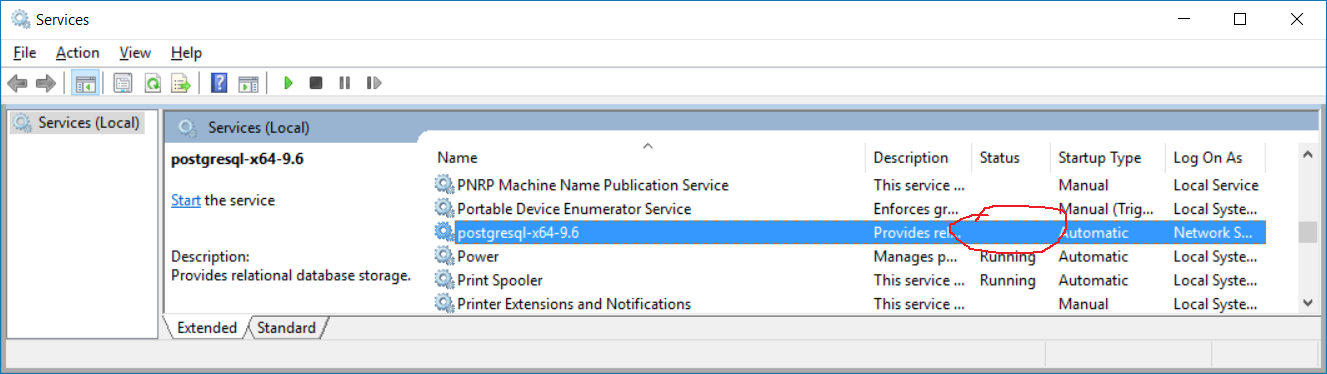
If you examine services in the Windows 10 host, you will see that the PostgreSQL service is terminated as illustrated in the screenshot below. At this time, any query to the PostgreSQL database results in failure.


The solution is to exclude the PostgreSQL transaction log directory from Windows Defender's scan. Microsoft explains how this can be done in this page.

Tuesday, June 13, 2017

PosgreSQL on Windows: could not find a "psql" to execute

I installed PostgreSQL 9.6.3 on a Windows host. After I had run batch file pg_env.bat on the host, I encountered the following error message when I ran psql

could not find a "psql" to execute
psql: could not find own program executable

It turns out that the quotation marks for path of the PostgreSQL binary from the batch file pg_env.bat is the culprit. For instance, the pg_env.bat batch file on my Windows host has the following content,

@ECHO OFF
REM The script sets environment variables helpful for PostgreSQL

@SET PATH="C:\Program Files\PostgreSQL\9.6\bin";%PATH%
@SET PGDATA=L:\stackoverflow\Data
@SET PGDATABASE=postgres
@SET PGUSER=postgres
@SET PGPORT=5432
@SET PGLOCALEDIR=C:\Program Files\PostgreSQL\9.6\share\locale

To correct the problem, we need to remove the quotation marks from the "SET PATH" line, i.e., to change the file to the following,

@ECHO OFF
REM The script sets environment variables helpful for PostgreSQL

@SET PATH=C:\Program Files\PostgreSQL\9.6\bin;%PATH%
@SET PGDATA=L:\stackoverflow\Data
@SET PGDATABASE=postgres
@SET PGUSER=postgres
@SET PGPORT=5432
@SET PGLOCALEDIR=C:\Program Files\PostgreSQL\9.6\share\locale